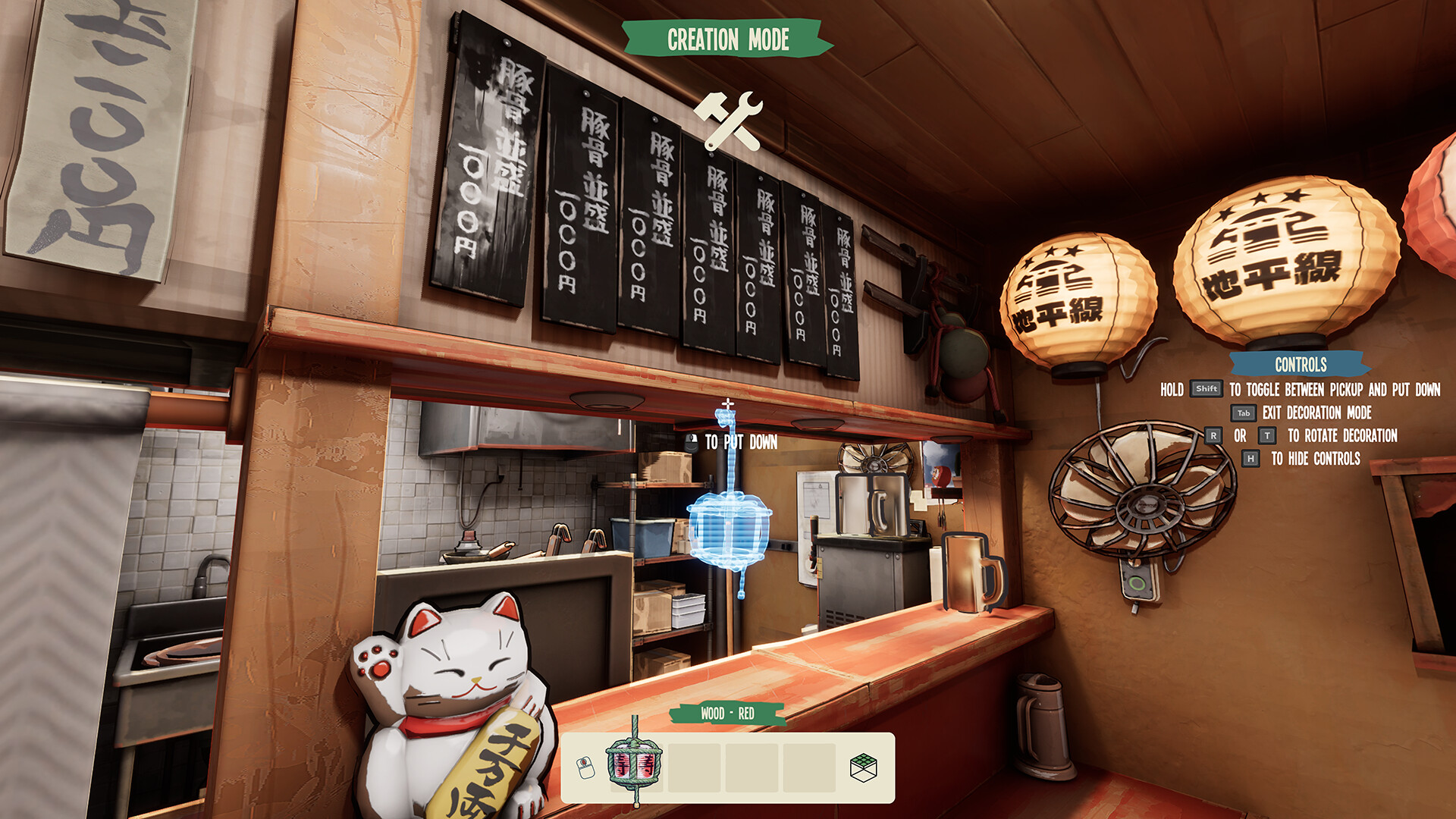
Ramen Shop Simulator how to move decorations is done in Creation Mode, and almost everything in your shop can be moved. You enter the mode, pick an object up, put it down where you want it, and rotate it if the default angle is wrong.
Ramen Shop Simulator how to move decorations: the controls
- Enter Creation Mode. This is the shop-building mode, and it is where all moving happens.
- Hold Shift to toggle between pick up and put down. The same key switches the action, so you hold it when you want to lift an object and hold it again when you want to set it down.
- Use R or T to rotate. Either key rotates the object you are holding, which is how you square a shelf against a wall or turn a sign to face the door.
- Press Tab to exit decoration mode. Tab leaves Creation Mode and puts you back to normal play.
- Press H to hide the on-screen controls. This clears the key prompts out of your view when you want a clean look at the shop.
The Shift toggle is the one that trips people up. It is a toggle rather than a separate key, so the same hold does both jobs depending on the state you are in, and the on-screen prompt tells you which way it will go before you commit.
Everything you move here you have to own first, and the decorations guide covers where decorations come from and how they are stored before they reach the shop floor.
What you can move
Almost everything in your shop can be moved, not just decorations. That includes the furniture you have bought, the appliances from the Hardware Store and the machines you upgraded. Which means the layout of your kitchen is a decision you can revisit whenever the shop changes shape, and it is worth doing after every big purchase.
Appliances are the case worth knowing about. A machine you have just bought and then decided you cannot fit in the corner where you put it can be picked up in the same mode and sold again on the decoration shelf, so a bad purchase is never permanent. The equipment upgrade guide covers what to buy and how the three stats compare.
Selling one back
To sell something you have already placed, pick it up in Creation Mode and sell it from the decoration shelf. The decoration storage next to the fax machine is where sold decorations go, and the same shelf is where decorations land when you order them.
The same shelf takes appliances you no longer need, and the equipment upgrade guide covers the three numbers you would be giving up with each one.
Customisation is the other thing a decoration carries
A decoration is not only a shape you place. The ones you own come with customisation options — wood colour and tile patterns on your furniture are the ones that exist today, and different bowl shapes and decals are planned. So two copies of the same bench can look different, and moving a piece is not the only decision you make about it.
Two routes bring these into the shop. Buying and ordering them puts them on the storage shelf, and finishing challenges unlocks decorations and customisations as rewards, alongside recipes. That second route is free, and it is why the challenge list in the Notebook is worth reading even on a day when you are not chasing a recipe — the unlock recipes guide covers how the reward list works.
If you are trying to work out what you can sell and what you should keep, the decorations guide covers where they come from and the box rule for larger orders.